Zamp for Xero: Creating Invoices
Overview
The Zamp integration with Xero is able to calculate taxes for invoices and Credit Notes, and post them to Zamp. Follow the steps below to calculate taxes on both types of transactions.
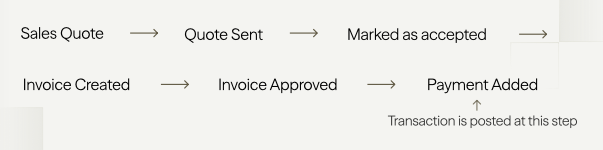
Invoice Posting Flow
Key Note
Invoices are posted when they transition into the Paid status.
Creating Invoices
- Hit New Invoice.
- Select a Contact.
- Designate a Due date.
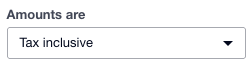
- Flip Amounts are to Tax inclusive.
- This will be changed back on invoice save.
-
- Select your line items, and an Account.
- You don’t need to select a tax rate or enter an amount. Zamp will handle calculations.
- Save & close the invoice.
- After waiting a few seconds, reopen the invoice.
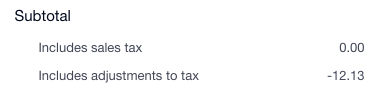
- You may see an Includes adjustments to tax line item with a negative value. This will be the difference between the placeholder Xero value, and the Zamp-calculation.
-
- Change Amounts are back to Tax exclusive.
- The Total sales tax line will now have the Zamp-calculation value.
-
- Total sales tax will now contain the Zamp-calculated tax amount.